CLIENT SETUP
WireGuard on iPhone: Setup Guide for Home IP Access
Getting your iPhone to connect back to your home internet is one of the most useful parts of a Home IP VPN setup. If you want to setup WireGuard iPhone access…
✓What You'll Need Before✓Step 1: Install the WireGuard iOS✓Step 2: Add Your Tunnel via QR Code
Quick Answer
Setting up WireGuard on iPhone takes about five minutes once your server config is ready: install the free app, add the tunnel by scanning the server’s QR code or importing the .conf file, then enable on-demand rules so the VPN activates automatically on every network except your home WiFi, the five-minute setup HomeIPVPN hands to every iPhone-carrying client.
- What you need: A working home WireGuard server with the client config ready as a QR code or .conf file; the app cannot generate a tunnel on its own.
- Add the tunnel: Scan the QR code from your server’s admin page or import the .conf file, then rename it something memorable like Home IP.
- On-demand rules: Activate on everything except your home SSID so your home IP follows you automatically.
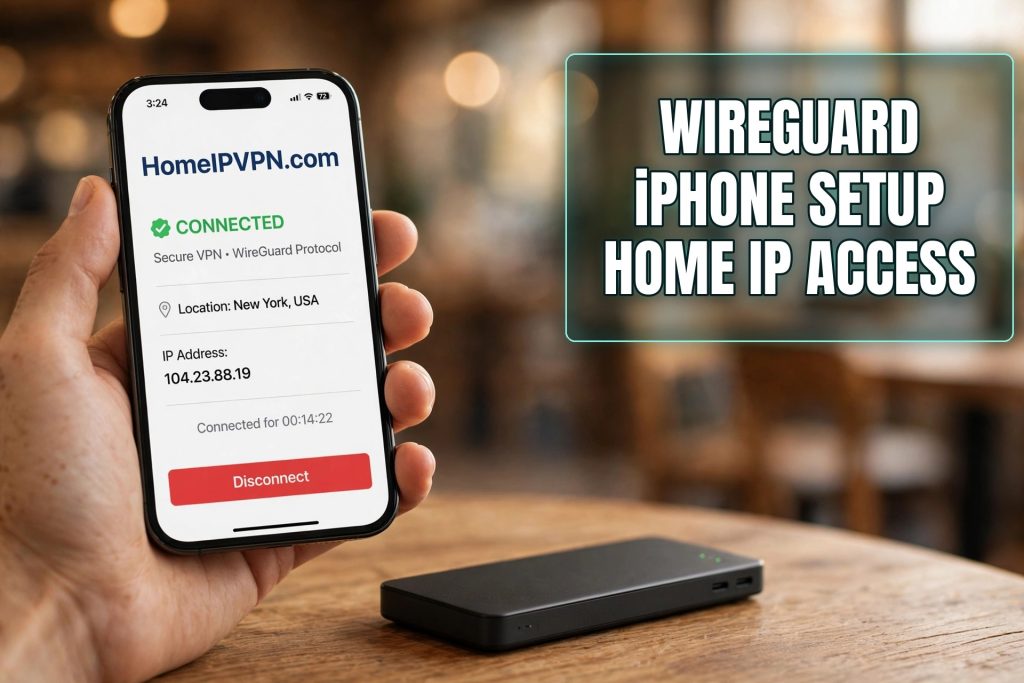
WireGuard on iPhone: Setup Guide for Home IP Access
Getting your iPhone to connect back to your home internet is one of the most useful parts of a Home IP VPN setup. If you want to setup WireGuard iPhone access so your phone carries your home IP address wherever you travel, this guide walks you through it, from installing the app to configuring on-demand rules that connect the tunnel automatically.
What You'll Need Before Starting
- A working WireGuard server at home (on a router or mini-PC) with your client config ready, either as a
.conffile or a QR code. Your server admin or setup service provides these. - An iPhone running a recent iOS version with internet access.
- About five minutes.
If you don't have a server config yet, sort that out first, the iPhone app can't generate a working tunnel on its own; it needs the peer details from your server.
Step 1: Install the WireGuard iOS App
- Open the App Store on your iPhone.
- Search for WireGuard (published by WireGuard Development Team).
- Tap Get and install it, it's free and open source.
- Open the app. On first launch, iOS will ask you to allow the app to add VPN configurations. Tap Allow and authenticate with Face ID, Touch ID, or your passcode.
That permission is essential: without it, the app can't create the VPN profile iOS needs to route traffic.
Step 2: Add Your Tunnel via QR Code
The fastest way to add your home-IP tunnel is with a QR code generated on the server side (GL.iNet routers and most WireGuard server UIs offer a "show QR code" option for each client).
- In the WireGuard app, tap the + button in the top-right corner.
- Choose Scan QR code.
- Point your camera at the QR code shown on your server's admin page.
- The tunnel appears in the list with the name from the config. Rename it something memorable like "Home IP" by long-pressing it and choosing Edit.
No QR code? Tap + and choose Create from file or archive instead, then select the .conf file you saved to iCloud Drive or emailed to yourself. The app parses it into the same kind of tunnel entry.
Step 3: Activate and Verify
- Toggle the tunnel on using the switch next to its name.
- Wait a few seconds, the status dot turns green when the handshake succeeds.
- Open Safari and visit an IP-check site. Confirm that:
- The IP address shown is your home IP (not your hotel or cellular IP).
- The location shown is your home city.
If the tunnel won't connect, the usual culprits are: a typo in the endpoint address, the server's port not forwarded on your home router, or your home IP having changed without DDNS updating. Check those on the server side.
Step 4: On-Demand Rules for Automatic Protection
This is the step most people skip, and the one that makes the setup truly hands-off. On-demand rules tell iOS when to activate the tunnel automatically, so you don't have to remember to toggle it.
- Long-press your tunnel and tap Edit, or tap the tunnel name.
- Open On-demand activation.
- Configure rules like:
- Activate on any network except your home Wi-Fi SSID. This way the tunnel stays off when you're home (no pointless loop) and switches on everywhere else.
- Optionally, enable on-demand for cellular too, so your home IP follows you on mobile data as well.
A practical setup: on-demand ON for everything except your home SSID and any other fully trusted networks. From then on, your iPhone quietly routes through home whenever you're away, and you never touch the switch.
Everyday Use and Tips
- Battery: WireGuard is extremely lightweight, modern, efficient cryptography means negligible battery impact compared to older VPN protocols.
- Kill switch behavior: iOS doesn't offer a classic kill switch toggle for WireGuard, but with on-demand enabled, traffic can't leave the device without the tunnel when a rule matches. If the tunnel fails while on-demand is active, iOS blocks traffic rather than leaking it.
- Multiple tunnels: You can store several configs (home, a family member's, a VPS) and switch between them, but only one can be active at a time.
- Traveling abroad: Because all traffic exits from your home, streaming services, banking apps, and work tools see your normal home IP, no "suspicious login from a new country" emails.
Troubleshooting Common Issues
| Problem | Likely cause | Fix |
|---|---|---|
| Tunnel won't connect | Port not forwarded at home | Forward UDP 51820 to the server; check DDNS |
| Connects but no internet | DNS misconfigured | Set DNS in the config to your home router or a public resolver |
| Works on Wi-Fi, not cellular | Carrier blocking UDP | Try a different listen port on the server side |
| IP check shows wrong location | Tunnel not actually active | Toggle off/on, confirm the green status dot |
| On-demand never triggers | Rules misconfigured | Re-check the SSID exception list spelling |
Frequently Asked Questions
Is the WireGuard iOS app free?
Do I need a jailbroken iPhone to use WireGuard?
Can I use WireGuard on iPhone and a travel router at the same time?
Will WireGuard drain my iPhone battery?
What happens if my home internet goes down?
Can my employer see that my iPhone uses WireGuard?
Need help setting this up?
Rather not fiddle with configs yourself? Our done-for-you service sets up your home and travel routers end to end, so your home IP simply works from day one. Book here: https://homeipvpn.com.

