VPN SETUP GUIDES
How to Route Only Work Traffic Through Your Home IP
Full tunnel is the safe default, but it has a cost: every Netflix episode and software update queues up behind your home connection's upload speed. If…
✓Identifying Which Traffic Actually✓Policy-Based Routing Options on✓Keeping Personal Browsing Fast
Quick Answer
To route only work traffic through your home IP, use your travel router’s VPN policy: send work devices through the tunnel and everything else direct, so your home upload is reserved for what matters. Device-based splitting is simpler and more robust than per-domain lists. HomeIPVPN maps this split per device during setup.
- Needs it: Work SSO, company tools, banking and financial apps, work email, and anything that ever showed a verify-it’s-you prompt abroad.
- Doesn’t: Streaming, gaming, software updates, cloud backups, and casual browsing go direct for full speed.
- DNS: Tunneled domains’ DNS should go through the tunnel too, or services can spot the mismatch.
- The rule: When in doubt, tunnel it; over-tunneling costs a little speed, under-tunneling costs a locked bank account.
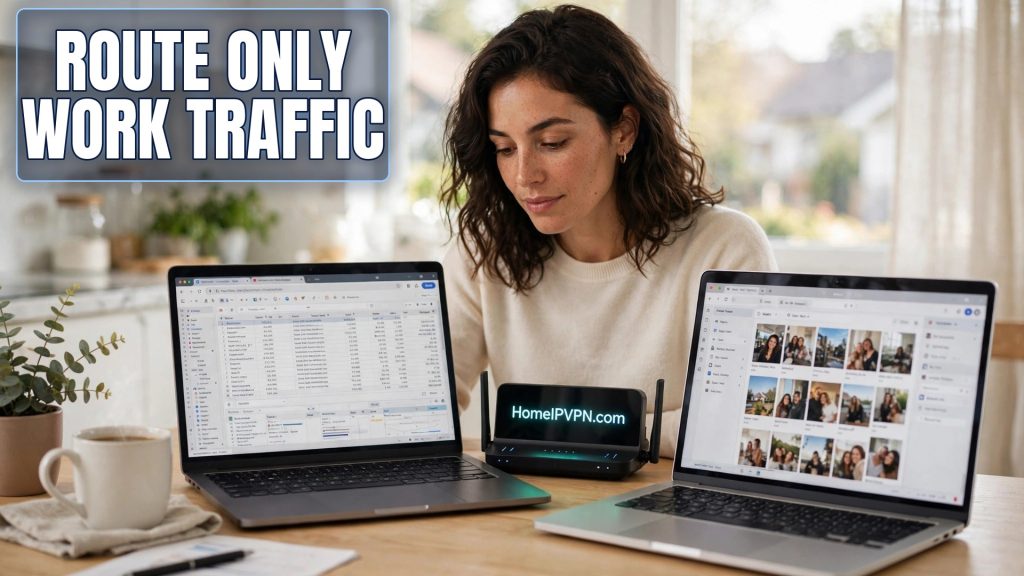
How to Route Only Work Traffic Through Your Home IP
Full tunnel is the safe default, but it has a cost: every Netflix episode and software update queues up behind your home connection's upload speed. If your tunnel feels sluggish and the culprit is personal traffic hogging it, the fix isn't a faster tunnel. It's deciding what actually needs to be "home." Here's how to route only work traffic VPN while letting everything else take the fast direct path.
> Quick answer: To route only work traffic through your home IP, use your travel router's VPN policy to send work devices (or work-related domains) through the tunnel and everything else direct. Identify what truly needs the home IP: work SSO, company tools, banking, and anything with fraud detection. Personal streaming, gaming, and browsing go direct. Verify with IP checks per device afterward.
Identifying Which Traffic Actually Needs the Home IP
Before touching any settings, make the list. Traffic earns a tunnel slot if it meets any of these:
Needs the home IP:
- Work SSO, VPN, and internal tools. The obvious core. Your employer's security expects your home location.
- Banking and financial apps. Fraud detection is the strictest audience you'll face; keep it all on the home IP.
- Email used for verification. Password resets and 2FA-adjacent flows often trip on IP changes. If your work email is also your recovery email, tunnel it.
- Streaming services tied to home. If you keep home-region subscriptions working abroad, those domains need the tunnel.
- Anything that has ever shown you a "verify it's you" prompt abroad. Past behavior predicts future flags.
Doesn't need it:
- General web browsing, news, social media.
- YouTube, Spotify, and other services that don't care about your region.
- Software updates and cloud backups (bandwidth hogs with zero location sensitivity).
- Video calls with friends and family.
- Gaming.
The gray zone: work-adjacent personal stuff. Your personal Gmail that receives work forwards? Tunnel it; it's part of your identity graph. A side-project server you SSH into? Doesn't care about your IP; direct is fine. When in doubt, tunnel it. The cost of over-tunneling is a little speed; the cost of under-tunneling is a fraud flag at 2am.
Write the list down. Seriously. "I'll remember which apps need it" lasts until the third new app install.
Policy-Based Routing Options on Routers and Devices
On the travel router (recommended): this is the cleanest place to split, because it covers all devices without per-device config.
- In your GL.iNet (or OpenWrt) VPN dashboard, open the VPN Policy settings.
- Choose your split strategy:
- By device: work laptop and work phone use VPN; everything else direct. Simplest to reason about, and my default recommendation.
- By domain/IP: list work and banking domains to tunnel; everything else direct. More surgical on bandwidth, more maintenance.
- Set the kill switch appropriately: it should guard the tunneled traffic. Understand that direct-routed devices are intentionally outside it.
- Save, then re-check each device's visible IP.
On individual devices: if you're not using a travel router, options are thinner. WireGuard clients don't do app-based splitting natively. Commercial VPN apps often do (per-app lists), and some let you combine "work apps tunnel, rest direct." It's workable for a single laptop but doesn't scale to a household of devices, and every app update is a chance for the list to reset.
The hybrid most people land on: router handles the device-level split (work devices tunnel, personal devices direct), and within the work laptop, everything goes through the tunnel (full tunnel on the devices that matter). Simple mental model: which device determines the path, not which app. You lose a little bandwidth efficiency versus domain-based splits, and you gain a setup you can actually keep correct.
Keeping Personal Browsing Fast While Work Stays "Home"
The payoff of the split is a tunnel with nothing but work in it. A few things to protect that:
Guard the tunnel's bandwidth. Your home upload is now dedicated to work, which is the point. Don't let a "quick" personal download on the work laptop eat it. If the laptop is the tunneled device, treat it as a work appliance while traveling.
Mind DNS. When you split by domain, DNS queries for tunneled domains should go through the tunnel too, or you get the worst of both: the site loads via home IP but the DNS query went out locally (and some services notice the mismatch). Router-level splits usually handle this; verify with a DNS leak test from a tunneled device.
Revisit the list quarterly. New apps, new services, new employer tools. A split config rots quietly. Put a 10-minute review on your calendar every few months: check each device's IP, confirm the policy list still matches reality, update for new devices.
What about the gray-zone traffic? Revisit the rule: when in doubt, tunnel it. A split that's slightly too generous costs you a fraction of speed. A split that's slightly too narrow costs you a locked bank account in a foreign timezone. The asymmetry is the whole argument.
A Worked Example
Two people, one Airbnb, one 20 Mbps home upload:
- Your work laptop: full tunnel via router policy. Video calls, SSO, code pushes, all home IP.
- Your phone: tunneled (banking app, work email).
- Partner's laptop: direct, unless they also work remotely, then tunneled.
- Fire Stick: direct. It streams local-catalog content at full hotel speed and never touches your upload.
- Guest network: direct, always.
Result: the tunnel carries two devices' work traffic comfortably inside 20 Mbps, the TV streams in 4K without stealing call quality, and nobody had to think about it after day one.
FAQ
How do I route only work traffic through my VPN?
What counts as "work traffic" for tunneling?
Will split tunneling trigger bank fraud alerts?
Is device-based or domain-based splitting better?
Do I need a travel router for this, or can apps do it?
How often should I review my split configuration?
Need help setting this up?
We'll map your work-vs-personal split and configure it on your router, verified device by device: https://homeipvpn.com.

