ROUTER SETUP
How to Set Up DDNS for Your Home VPN Server
Your home internet IP address changes, that’s normal, and it’s the single most common reason a working VPN setup mysteriously “stops working” one day. The fix…
✓What DDNS Does and Why Dynamic IPs✓Built-In GL.iNet DDNS vs✓Setting It Up Step by Step
Quick Answer
DDNS keeps a fixed hostname on your home’s current public IP, so ISP rotations stay invisible to VPN clients. Enable the router’s built-in client, point configs at the hostname, and verify with DNS lookups: the check HomeIPVPN runs before a setup goes live.
- What it does: The client watches your public IP and updates DNS on change; the travel router always finds home.
- Built-in vs third-party: GL.iNet’s one-toggle DDNS just works; DuckDNS offers more control, custom domains, and multiple hostnames.
- Our recommendation: Use the built-in DDNS for set-and-forget travel: one toggle, maintained by the vendor, no free-tier renewal failures.
- The critical rule: The updater belongs on an always-on device with the true public IP: the router itself.
How to Set Up DDNS for Your Home VPN Server
Your home internet IP address changes, that’s normal, and it’s the single most common reason a working VPN setup mysteriously “stops working” one day. The fix is DDNS (Dynamic DNS). If you want to setup DDNS home VPN server access that survives every ISP IP rotation, this guide explains what DDNS does, compares built-in vs third-party options, and shows you how to verify it’s actually working.
What DDNS Does and Why Dynamic IPs Need It
Most residential internet plans assign your IP dynamically, via DHCP from your ISP, with leases that renew every hours or days. Your address can change after a router reboot, a lease expiry, or whenever your ISP feels like renumbering. You usually won’t notice, because outbound browsing doesn’t care what your IP is.
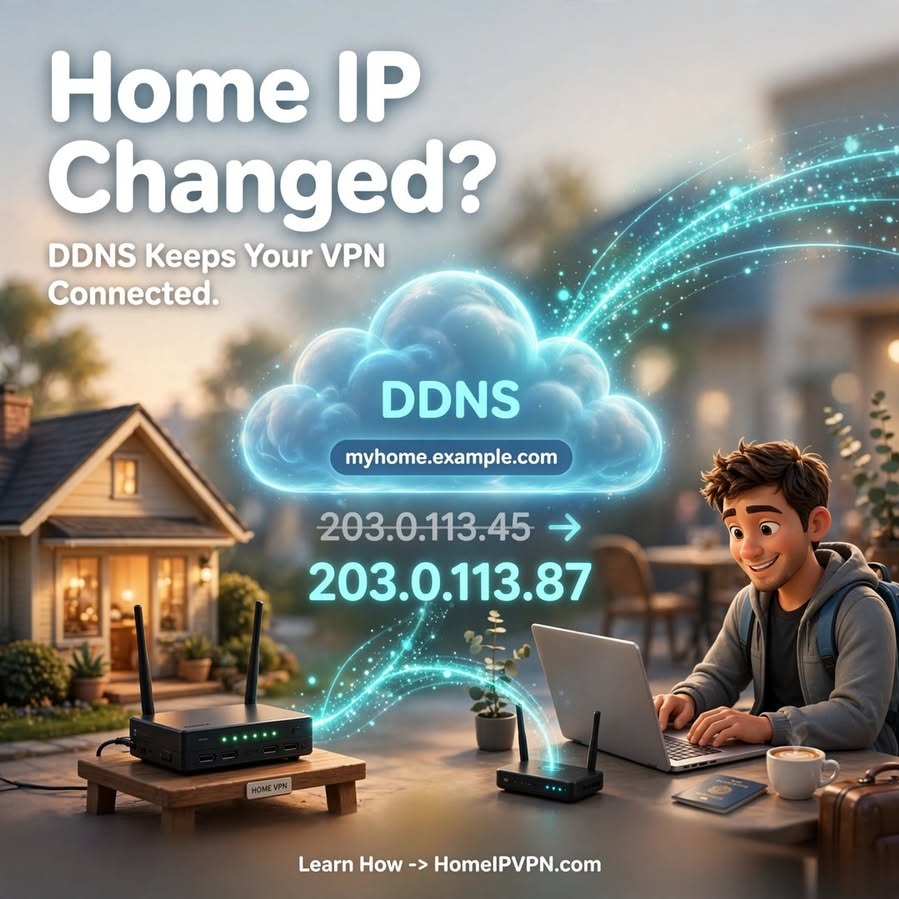
But a VPN server is different: your travel router, phone, and laptop all need to find your home server to connect. If your WireGuard config says “connect to 203.0.113.45” and your ISP changed it to 203.0.113.87 overnight, your tunnel dies, and you’re debugging from a hotel room.
DDNS solves this with one moving part: a small client (on your router) watches your public IP and, the moment it changes, updates a DNS record for your hostname. Your VPN configs point at the hostname, DNS always resolves to the current IP, and IP rotations become invisible.
ISP changes your IP → DDNS client notices → updates myhome.example.com →
your travel router resolves the hostname → tunnel reconnects automatically
Without DDNS, you’d have to manually discover your new home IP (by calling someone at home, or logging into your ISP account remotely) and update every client config, per rotation, forever.
Built-In GL.iNet DDNS vs Third-Party Providers
| GL.iNet built-in DDNS | Third-party (DuckDNS, etc.) | |
|---|---|---|
| Setup | Toggle in admin panel, hostname auto-assigned | Create account, get token, configure updater |
| Cost | Free with the router | Free tiers widely available |
| Hostname | Provider subdomain (e.g., *.glddns.com) | Your choice of subdomain |
| Control | Minimal, it just works | Full, multiple hostnames, APIs, custom domains |
| Dependency | Tied to the router vendor’s service | Independent of any hardware vendor |
| Best for | Set-and-forget travelers | Tinkerers, custom domains, multi-site setups |
Our recommendation for most travelers: use the built-in DDNS. It’s one toggle, it’s maintained by the router vendor, and it eliminates an entire category of “I forgot to renew the free-tier hostname” failures. The hostname isn’t pretty, but your VPN configs don’t care about pretty.
When third-party makes sense: you want your own domain (vpn.yourname.com), you run multiple sites and want consistent naming, or you don’t trust a vendor-tied service for critical infrastructure. The setup is still simple, most DDNS providers give you a token and a one-line updater configuration for OpenWrt-based routers.
One caution: whichever you choose, the DDNS updater must run on a device that’s always on and can see the true public IP. On the VPN server router itself is ideal. Don’t run it on a laptop that sleeps.
Setting It Up Step by Step
GL.iNet built-in DDNS
- Open your home router’s admin panel → Applications → Dynamic DNS (location varies slightly by firmware version).
- Enable the DDNS service.
- Note the assigned hostname (something like
xxxxxx.glddns.com). - In every WireGuard client config, set the Endpoint to
xxxxxx.glddns.com:51820, hostname, never a raw IP. - Save and apply.
Third-party DDNS (general pattern)
- Create an account with your chosen DDNS provider and register a hostname.
- Copy the update token/credentials.
- On your router, install or enable the DDNS client package and enter the provider, hostname, and credentials.
- Set the check interval (every 5–10 minutes is typical).
- Point all VPN client configs at the hostname.
Verifying Updates and Handling IP-Change Hiccups
Setup isn’t done until you’ve proven it survives a rotation. Here’s the verification routine:
- Check current resolution: From anywhere (your phone on mobile data works), run
nslookup myhome.example.comor use an online DNS checker. Note the IP. - Compare with reality: Check your home router’s WAN IP in its admin panel. They must match. If they don’t, the updater isn’t working, check its logs and credentials.
- Force a rotation test: Reboot your home modem/router (or wait for a natural lease renewal) and confirm the hostname updates within a few minutes. This is the test most people skip, and the one that saves you mid-trip.
- Check TTL: DDNS hostnames use short TTLs (time-to-live, often 60 seconds) so changes propagate fast. If your provider uses long TTLs, clients may cache the stale IP for a while after a change.
Handling hiccups:
| Symptom | Likely cause | Fix |
|---|---|---|
| Hostname resolves to old IP | Updater not running or wrong credentials | Check updater status/logs; re-enter credentials |
| Hostname doesn’t resolve at all | DDNS service issue or hostname expired | Check provider status; renew hostname if free-tier lapsed |
| Tunnel drops for ~5 min after IP change, then recovers | Normal, DNS propagation + client retry | No action needed; this is expected behavior |
| Tunnel never recovers after IP change | Client caching stale DNS or no retry | Ensure client resolves hostname fresh; check PersistentKeepalive |
| WAN IP is private (10.x/100.64.x) | CGNAT, DDNS can’t help | DDNS updates a useless private IP; you need a CGNAT workaround |
The CGNAT caveat deserves emphasis: DDNS only works if your home router has a real public IP. Behind carrier-grade NAT, the “public IP” the updater sees isn’t reachable from the internet, and no amount of DNS updating fixes that. Check first: if your router’s WAN IP differs from what an IP-check site shows, you’re behind CGNAT and need a different approach (relay, VPS hop, or an ISP plan with a public IP).
Frequently Asked Questions
How often do home IPs actually change?
It varies wildly by ISP, some rotate every few days, others keep the same address for months unless the modem reboots. Assume it will change at the worst possible moment and set up DDNS regardless.
Is DDNS secure? Doesn’t it advertise my home IP?
The hostname resolves to your IP, which is public information anyway, anyone can already see it when you browse. Use an unguessable hostname, keep the VPN port as your only open port, and DDNS adds no meaningful exposure.
Can I use my own domain name with DDNS?
Yes, most third-party DDNS providers support custom domains via a CNAME record pointing at their hostname. Your VPN endpoint becomes vpn.yourdomain.com, which is tidy and portable across providers.
What happens if the DDNS provider has an outage?
Your existing tunnel keeps working (it’s already connected to an IP). New connections fail until DNS resolves again. This is rare and short-lived with major providers, and another argument for keeping a fallback VPN profile.
Do I need DDNS if my ISP gives me a static IP?
No, a static IP never changes, so you can put it directly in client configs. But confirm it’s truly static (in writing from your ISP), not just “hasn’t changed in a while.”
Should the DDNS updater run on the VPN server or the ISP modem?
On the VPN server router (or any always-on device behind the modem), it needs to detect the public IP. If the server router is behind the ISP modem in a double-NAT setup, make sure the updater reports the true public IP, not the modem’s LAN address.
Need help setting this up?
DDNS, port forwarding, firewall rules: the home-server side has the most ways to fail silently. Our done-for-you setup gets all of it right and proves it with tests: https://homeipvpn.com.

