ROUTER SETUP
Turn a GL.iNet Router into a WireGuard Server at Home
GL.iNet's little routers are famous as travel companions. Less known: they're excellent homebodies too. A GL.iNet WireGuard server setup at home…
✓Which model to press into service✓Enabling the server (no terminal✓The three steps people mess up
Quick Answer
A GL.iNet router makes an excellent always-on home WireGuard server with no command line: plug its WAN port into your main router, enable the WireGuard server in the admin panel, and forward UDP 51820 to it. Most failures the HomeIPVPN team sees come from skipped setup steps, not the tech itself.
- Best pick: Beryl AX (GL-MT3000) is the sweet spot; Slate AX (GL-AXT1800) adds ports and headroom for households.
- Static first: Reserve a DHCP address for the GL.iNet box; forwards aimed at drifting LAN IPs die silently.
- Test outside: Connect from your phone on mobile data and confirm your visible IP is your home IP.
- CGNAT: If the router’s WAN IP differs from a public IP check, port forwarding can never work; use Tailscale instead.
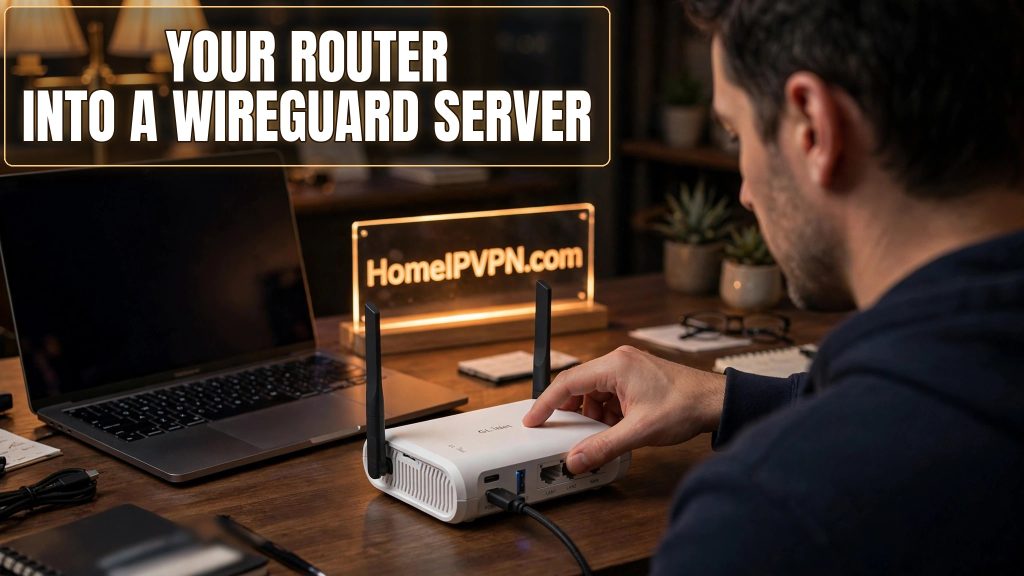
GL.iNet's little routers are famous as travel companions. Less known: they're excellent homebodies too. A GL.iNet WireGuard server setup at home gives you an always-on, silent, low-power VPN server with a friendly admin panel instead of a Linux command line. Here's how to set it up.
Which model to press into service
Nearly every current GL.iNet router can do this. The differences that matter for 24/7 home duty:
- Beryl AX (GL-MT3000): the sweet spot. WireGuard throughput that outruns typical home upload speeds, USB-C power, tiny enough to hide behind the main router.
- Slate AX (GL-AXT1800): more headroom and ports. Good if the box will also serve the household or several travelers at once.
- Beryl (GL-MT1300): last generation, still fine at moderate speeds. The classic "repurpose the router I upgraded from" move.
- Mango (GL-MT300N-V2): works, but its modest CPU caps throughput. Backup duty, not primary.
All of them sip a few watts, run silent, and are built to stay on. That's the whole job description for a home VPN server.
Enabling the server (no terminal required)
- Wire it in. Plug the GL.iNet's WAN port into a LAN port on your main router. Wired beats repeater mode for something that must stay up for months.
- Open the admin panel at
192.168.8.1from a device on the GL.iNet's network. Run the setup wizard, set a strong admin password. - VPN → WireGuard Server → on. It generates the server key pair for you. Set the tunnel subnet to something that doesn't collide with your main LAN.
- Note the listen port (default 51820/UDP). Change it if you like; just remember the value for the next steps.
- Generate client profiles. One per device: your travel router, phone, laptop. The panel creates key pairs and hands you ready-to-import configs and QR codes. Download everything now while it's easy.
What you just skipped, compared to a DIY Linux build: manually writing configs, setting NAT rules, configuring the firewall. The panel does it in clicks.
The three steps people mess up
Static IP first. In your main router, reserve a DHCP address for the GL.iNet box (say, always 192.168.1.50). Port forwards aimed at drifting LAN IPs are the #1 silent killer of home VPNs.
Forward the port. In the main router: external UDP 51820 → 192.168.1.50:51820. UDP, not TCP. Double-check; this is where most setups die.
DDNS. Home IPs change. Use GL.iNet's built-in DDNS, your main router's, or a third-party provider, and put the hostname in every client config, never a raw IP.
Then test from outside. Phone off WiFi, on mobile data, import the client config, connect, check your visible IP. Home IP means it works. Anything else means something above needs another look. Also verify the travel router's client the same way.
Lock it down: strong admin password, remote admin access off on the WAN side (manage it through the tunnel or from home LAN), firmware updates on a schedule. A smart plug on the unit gives you remote reboots.
If the outside test fails anyway, check for CGNAT: compare your main router's WAN IP to a "what is my IP" result. Behind CGNAT, port forwarding is impossible regardless of settings. The fix is Tailscale on the GL.iNet (it's supported) instead of port-forwarded WireGuard.
The two-router household
Here's the pattern I'd suggest to most people: buy two identical GL.iNet units. One lives behind your main router in server mode, quietly doing its job for months. The other lives in your laptop bag in client mode. Same admin panel both ends, one set of concepts to learn, and a built-in spare: if the travel unit dies on a trip, you already know the interface for its replacement. Label them (a piece of tape that says HOME and TRAVEL saves future-you a lot of confusion), and keep a backup of both configs somewhere safe. When the home unit needs a firmware update, you can practice on the travel one first.
Quick questions
Can one GL.iNet box be server at home and client on trips?
Power consumption?
Does its own WiFi need to stay on?
My ISP router won't do port forwarding. Now what?
How do I revoke a lost device?
Need help setting this up?
We handle the GL.iNet server, the port forwarding, DDNS, every client profile, and outside-network verification. Done-for-you, booked here: https://homeipvpn.com.

