ROUTER SETUP
How to Test Your Home IP VPN Connection End to End
"My VPN is connected" and "my VPN actually works" are two different statements. A tunnel can show as "up" while leaking DNS,…
✓The 5-minute verification checklist✓Free tools to confirm your✓What to do when a test fails
Quick Answer
Test your home IP VPN in five minutes: fresh tunnel handshake, visible IP geolocating to home, DNS leak test, IPv6 and WebRTC leak checks, and a speed-test baseline. If any test fails, fix that layer: wrong IP means endpoint or routing, bad DNS means resolver config, leaks mean firewall or client settings.
- Handshake: WireGuard re-handshakes every 2 minutes when active; a stale handshake with a “connected” label means a zombie tunnel.
- DNS: the most common silent failure; all resolvers must be home or private, never the hotel ISP.
- Real-world check: log into your bank or open your home streaming library; no region warnings means the tunnel is proven. HomeIPVPN runs this same checklist in its VPN audit.
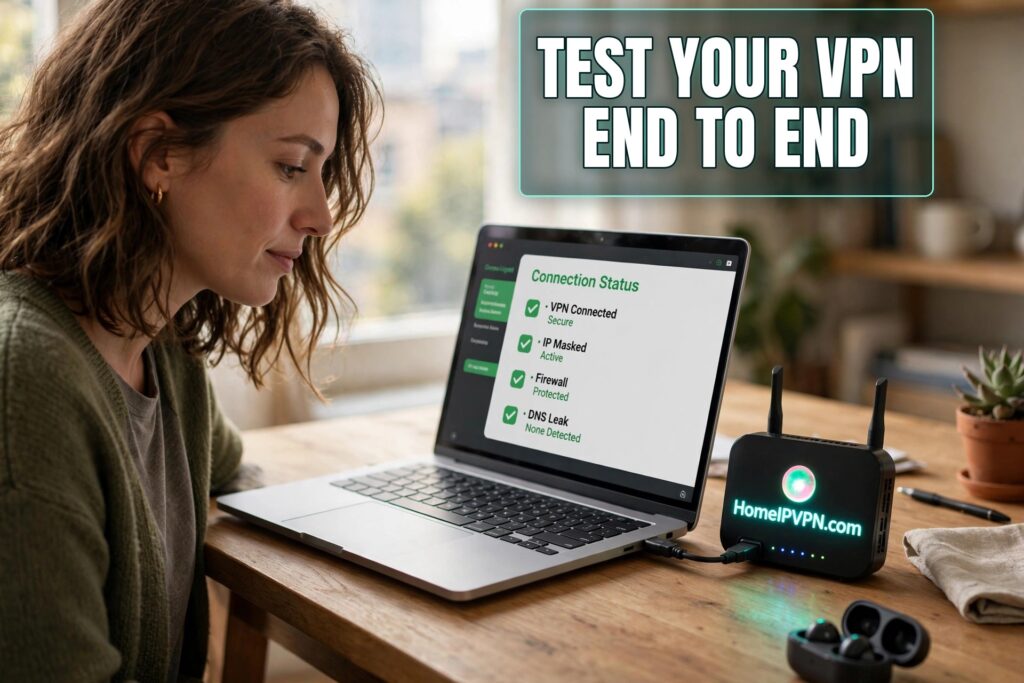
How to Test Your Home IP VPN Connection End to End
"My VPN is connected" and "my VPN actually works" are two different statements. A tunnel can show as "up" while leaking DNS, exposing IPv6, or routing traffic outside the tunnel, and you'd never know until a bank locks your account or a stream blocks you. This guide gives you a repeatable way to test home VPN connection setups end to end, in about five minutes, plus what to do when a test fails.
The 5-minute verification checklist
Do these in order, with your travel router connected to a foreign or simulated-foreign network (a phone hotspot works) and the tunnel up. Each step isolates one layer.
1. Tunnel handshake: is it actually alive? (30 seconds)
Open your WireGuard/OpenVPN client status. For WireGuard, check the latest handshake timestamp, it should be within the last couple of minutes (WireGuard re-handshakes every 2 minutes by default when active). A stale or missing handshake with a "connected" label means the tunnel is a zombie: the UI thinks it's up, but no crypto is flowing. If stale, restart the tunnel and check again.
2. Visible IP: does the world see home? (30 seconds)
Visit an IP-check site and confirm:
- The IPv4 address is your home public IP (or your DDNS hostname resolves to it).
- Geolocation shows your home city/region, not your actual location, not a datacenter.
If the IP is wrong, the problem is endpoint addressing (stale IP, DDNS failure) or routing (traffic bypassing the tunnel). If geolocation shows a nearby but wrong city, that's usually just IP-database imprecision, fine.
3. DNS leak test: who's resolving your queries? (1 minute)
Use a DNS leak test site (extended test if offered). You want:
- All detected DNS servers to be your home ISP's, your home server's, or your chosen private resolver, never the local hotel/café ISP.
- No servers in your physical country.
DNS leaks are the most common silent failure. They happen when the client doesn't push DNS settings, the OS caches old resolvers, or the router's DHCP advertises local DNS alongside the tunnel.
4. IPv6 and WebRTC leaks: the hidden exits (1 minute)
- IPv6: the leak test shows an IPv6 section. If an IPv6 address appears that geolocates to your travel location, traffic is escaping outside the tunnel. (Fix: disable IPv6 on the travel router, or route IPv6 through the tunnel properly.)
- WebRTC: use a WebRTC leak test. Browsers can reveal local and public IPs via WebRTC even through a VPN. If your real IPs appear, enable WebRTC leak protection in your browser or VPN client.
5. Speed test: the baseline (2 minutes)
Run a speed test through the tunnel and note download, upload, and ping. Compare against your known baseline (test once from home directly, once through the tunnel from a good network, and write both down). You're checking for regression, not absolute speed, a sudden drop means something changed (ISP throttling, server load, relay fallback on a mesh VPN).
Free tools to confirm your location reads "home"
You don't need paid tools. The standard kit:
| Test | What it checks | Pass criteria |
|---|---|---|
| IP check site | Visible IPv4 + geolocation | Home IP, home city |
| DNS leak test | Resolver identity | Home/private resolvers only |
| IPv6 check | IPv6 visibility | None, or home-geolocated |
| WebRTC leak test | Browser IP exposure | No real IPs visible |
| Speed test | Throughput baseline | Within normal range of your baseline |
| Streaming/banking login | Real-world service behavior | No region warnings, no fraud flags |
The last row is the ultimate end-to-end test: log into your bank or open your home streaming library. If services that care about location behave as if you're home, the technical tests below them are confirmed in practice.
Pro tip: bookmark all five test sites in a "VPN check" folder and run them as a ritual, after setup, after firmware updates, after any config change, and monthly on long trips. Five minutes, total confidence.
What to do when a test fails
Don't guess, the failing test tells you which layer to fix:
- Handshake stale / tunnel won't connect → Endpoint problem. Check the DDNS hostname resolves to your current home IP; verify the port forward on the home router; confirm the home server is powered and its WireGuard service is running. Try the backup access path (mesh VPN) to diagnose from inside.
- IP check shows travel location → Traffic isn't entering the tunnel. Check the client's AllowedIPs (WireGuard should include 0.0.0.0/0 for full tunnel), the travel router's VPN policy (is this device actually assigned to the tunnel?), and whether the tunnel silently dropped while the UI still says "connected."
- DNS shows local ISP → Resolver misconfiguration. Set DNS explicitly on the travel router to your home server or a trusted resolver, ensure the VPN pushes DNS to clients, and flush the OS DNS cache. Consider firewall rules blocking port 53 to anything but the approved resolver.
- IPv6 leak → Disable IPv6 on the travel router's WAN (and ideally LAN), or extend the tunnel to carry IPv6 properly.
- WebRTC leak → Browser-level fix: enable leak protection in settings or an extension; for maximum safety use a browser profile dedicated to sensitive sessions.
- Speed collapse → Check whether the home server's own internet is degraded, whether a mesh VPN fell back to relay mode, or whether the local network is throttling VPN protocols (try a different port, e.g., WireGuard on 443/UDP).
Fix one layer, re-run the full checklist. Layers interact, a DNS fix can mask a routing problem, so always verify end to end after each change.
FAQ
How often should I run the full test suite?
My IP geolocates to a neighboring city, not my exact city. Is that a failure?
The tunnel is up but websites won't load. Which test covers that?
Should I test on every device or just one?
Can I automate these tests?
What's the single most common failure this checklist catches?
Need help setting this up?
Five minutes of testing beats five hours of debugging in an airport. If you'd rather have us run the full verification for you, handshake to speed test, and fix everything we find, that's our VPN audit: https://homeipvpn.com.

