ROUTER SETUP
How to Update Router Firmware Without Breaking Your VPN
Firmware updates patch security holes, skipping them leaves your VPN endpoint exposed. But every traveler knows the fear: you hit "update," the…
✓Pre-update checklist: backup and✓The safe update sequence for✓Post-update verification: tunnel,
Quick Answer
Back up everything first, update through the router’s official upgrade path without wiping settings, then verify the tunnel reconnects, DNS routes correctly, and the kill switch still holds. HomeIPVPN‘s rule for every client: never flash firmware the night before a trip.
- Backup: Generate a full config archive (confirm it is not zero bytes), then export VPN profiles and keys separately; archives do not always include private keys.
- Notes: Screenshot port forwards, firewall rules, DDNS credentials, and kill-switch settings. Note the current firmware version for rollback.
- Timing: Do it at home with time to fix problems, on stable power. Never on a dying battery or during a storm.
- Verify: Tunnel up, IP showing home, DNS through the tunnel, kill switch tested. Restore the backup if anything fails.
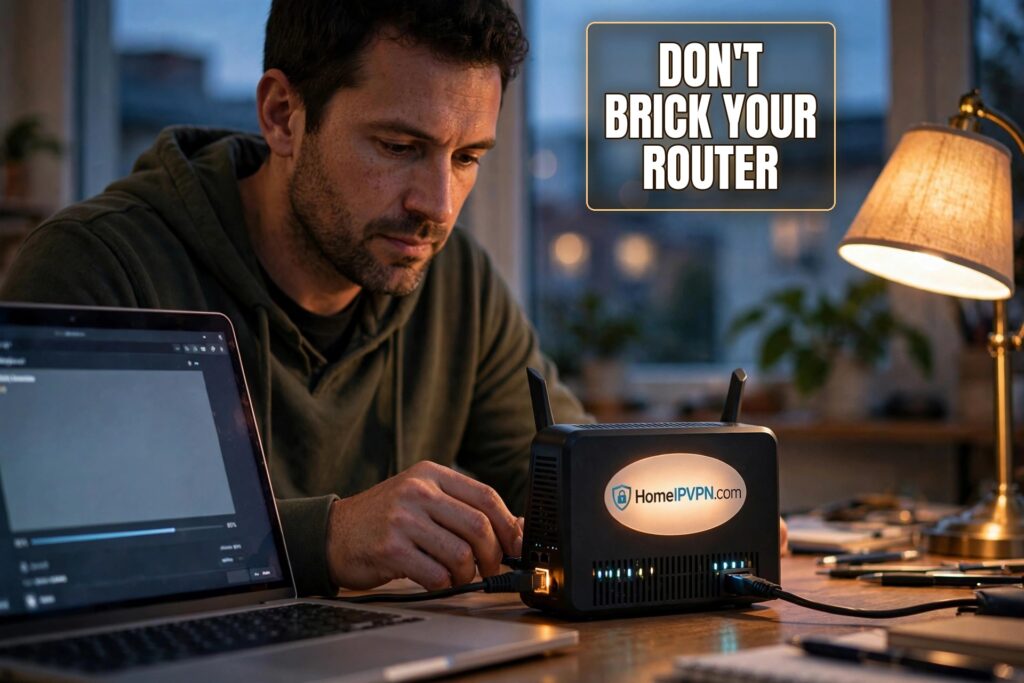
How to Update Router Firmware Without Breaking Your VPN
Firmware updates patch security holes, skipping them leaves your VPN endpoint exposed. But every traveler knows the fear: you hit "update," the router reboots, and your carefully tuned WireGuard setup comes back wrong. Here's how to update router firmware keep VPN settings intact, with a pre-update checklist, a safe sequence for GL.iNet routers, and post-update verification.
Pre-update checklist: backup and note custom settings
Updates usually preserve settings, "usually" is the operative word. Major version jumps, interrupted flashes, and corrupted configs do happen. Fifteen minutes of prep eliminates the downside:
- Generate a full configuration backup. On GL.iNet: System → Backup/Flash Firmware → Generate Archive. Download it and confirm the file isn't zero bytes.
- Export VPN profiles separately. From the VPN dashboard, export each WireGuard/OpenVPN client and server config. Backup archives don't always include private keys, separate exports are your guarantee.
- Screenshot or copy custom settings. DDNS credentials page, firewall custom rules, port forwards (your WireGuard UDP port), VPN policy/kill-switch settings, static DHCP leases, and WiFi credentials. If the restore is partial, these screenshots are your reconstruction guide.
- Note the current firmware version. Write it in your runbook. If the new firmware misbehaves, knowing the last-good version speeds up a rollback.
- Check the release notes. Look for mentions of VPN, WireGuard, firewall, or DDNS changes. If the update reworks the VPN subsystem, expect to re-verify everything carefully.
- Confirm you have time and stable power. Never flash firmware on a dying battery or during a storm. A power cut mid-flash can brick the device.
Do this for both routers if you run a home server router and a travel router, they're independent devices with independent firmware.
The safe update sequence for GL.iNet routers
- Download from the official source only. Use the router's built-in upgrade check or GL.iNet's official download page for your exact model. Never flash firmware from forums or third-party mirrors.
- Use the "keep settings" upgrade path. GL.iNet's web UI upgrade preserves configuration by default. Avoid the "reset to defaults" / clean-flash options unless you're deliberately starting over (and have your backup ready).
- Update over Ethernet if possible, or at least over a stable local WiFi connection, not through the VPN tunnel, not over a flaky hotel network. For the home server router, do it from home or via a separate management path.
- Don't touch anything during the flash. The router will reboot once or twice. Wait a full five minutes past when you think it's done before assuming a problem.
- Log back in and check the version number to confirm the update actually applied.
Special case, the home VPN server router: if you're traveling and the home router needs an update, think twice. A failed remote update means no VPN until someone physically intervenes. Unless the update fixes a critical security issue, schedule home-router updates for when you're home (or when a trusted person is there). Update the travel router freely, it's in your hands.
Post-update verification: tunnel, DNS, kill switch
Don't trust "settings were preserved." Verify functionally, in this order:
- Tunnel connects. Start the WireGuard/OpenVPN client and confirm it establishes. Check the handshake timestamp, a fresh handshake proves it's live, not a stale display.
- IP check shows home. With the tunnel up, verify your visible IP is your home address (for the travel router) or that remote clients can reach the server (for the home router).
- DNS is correct. Run a DNS leak test, DNS should resolve through your tunnel, not the local ISP. Firmware updates sometimes reset DNS to defaults.
- Kill switch / VPN policy still enforced. Disconnect the tunnel deliberately and confirm traffic stops (or falls back per your policy) rather than leaking out unprotected. Then reconnect.
- DDNS updater running. On the home router, confirm the DDNS client is active and the hostname resolves to your current public IP.
- Port forward intact. Verify your WireGuard UDP port still forwards to the server, updates occasionally reset firewall custom rules.
- Speed sanity check. Run a quick VPN internet speed test through the tunnel. Dramatically lower speeds can indicate a driver or crypto regression worth investigating (or rolling back).
If any check fails: first try re-applying the specific setting from your screenshots. If the failure is broad or confusing, restore the configuration backup, verify function, and consider staying on the old firmware until the issue is understood.
When to roll back
Roll back (restore your backup, or re-flash the old firmware if the vendor supports it) when: the tunnel won't establish at all, speeds collapse with no other explanation, the DDNS client is broken with no workaround, or the UI itself is unstable. A router that mostly works but has one cosmetic bug is fine to keep; a router that can't hold your VPN tunnel is not a router you travel with.
FAQ
Will a firmware update delete my WireGuard configuration?
Should I update firmware right before a trip?
Can I update my home router's firmware while I'm abroad?
The update reset my router to defaults. Now what?
Do I need to update the firmware on both my home and travel routers?
How often should I check for firmware updates?
Need help setting this up?
Firmware updates are one of those jobs that's trivial until it isn't. If you'd like someone to check your current firmware, set up backups that actually restore, and give you an update routine you can trust, start with a $79 Pre-Travel Audit & Advisory session: https://homeipvpn.com/appointment. Sessions run remotely via remote desktop at your scheduled appointment, and the $79 counts toward the $279 Secure Home IP VPN System session.

