TROUBLESHOOTING
Airbnb WiFi Speed Tests: How to Read Them Before You Book
I learned about Airbnb wifi the hard way, in a gorgeous loft in Barcelona with exposed brick, a rooftop terrace, and internet that moved like cold honey. The…
✓What Airbnb’s verified speed✓Reading the numbers like a remote✓What to do when there is no speed
Quick Answer
Airbnb now shows verified wifi speed tests on many listings, and they are the most reliable way to judge whether a rental can handle remote work before you book. Look for the tested download and upload numbers, not the host’s written claims. For video calls and VPN use, you want at least 25 Mbps down and 10 Mbps up, and you should be suspicious of listings with no speed data at all.
- Where to find it: many Airbnb listings now display a verified speed test result in the amenities or wifi section, measured by the Airbnb app itself.
- What the numbers mean: download affects streaming and loading, upload affects your video calls and anything you send, including VPN traffic.
- The remote work minimums: 25 Mbps down and 10 Mbps up handles video calls and everyday work comfortably; below that, ask questions before booking.
- Work from anywhere reliably: HomeIPVPN lets you work through your home connection from any rental, but it still needs the local wifi to be decent, so check the numbers first.
I learned about Airbnb wifi the hard way, in a gorgeous loft in Barcelona with exposed brick, a rooftop terrace, and internet that moved like cold honey. The listing had said “fast wifi.” The host had said “fast wifi.” The reviews had said “fast wifi.” What nobody had said was a number, and numbers are the only thing that matters.
I spent that week tethered to my phone’s data plan, taking client calls from a coworking space I was paying extra for, in a city I had chosen specifically so I could work from the apartment. The loft was beautiful. The wifi was a decorative feature. I vowed never again, and then Airbnb quietly rolled out the feature that would have saved me: verified speed tests right on the listing.
If you work remotely and book Airbnbs, this is one of the highest-value skills you can learn. Ten minutes of reading a listing properly can save you a month of frustration. Here is how to do it.
What Airbnb’s verified speed test actually is
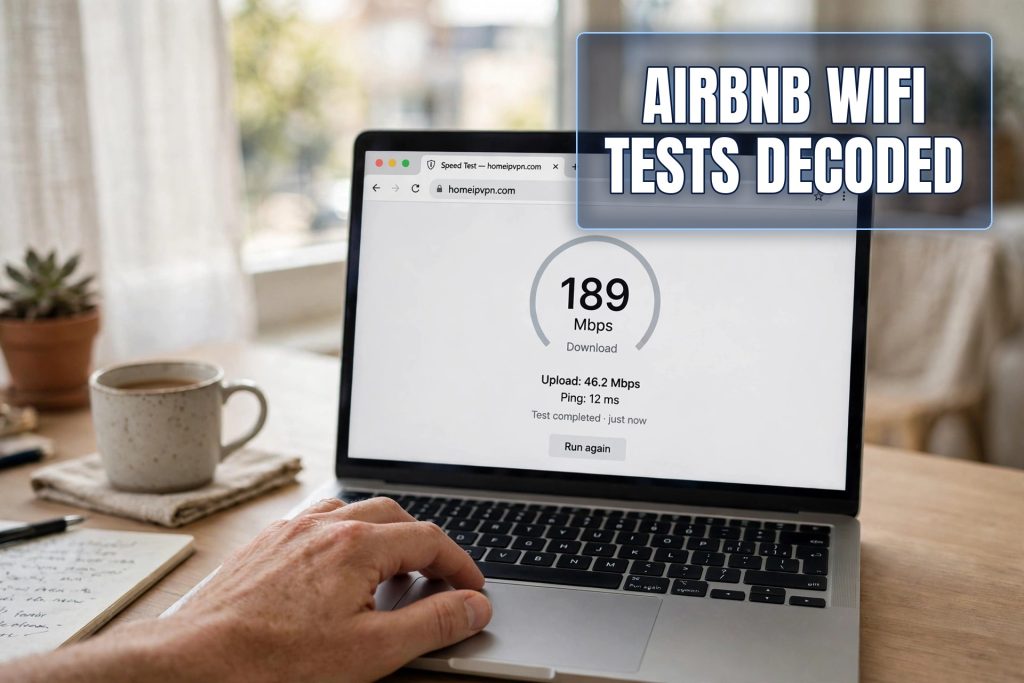
A few years ago, Airbnb added a feature that lets hosts run a speed test from inside the Airbnb app, and the result gets displayed on the listing. This matters enormously, because it replaces marketing language with measurement. “Fast wifi” is an opinion. “87 Mbps down, 23 Mbps up, tested 3 weeks ago” is a fact.
You will usually find it in the listing’s amenities section or near the wifi details. Not every listing has one. Hosts have to actually run the test, and plenty have not bothered. But adoption has grown steadily, and in popular nomad destinations you will now find it on a large share of listings aimed at remote workers.
The key word is “verified.” Anyone can type “gigabit fiber” into a listing description. The in-app test is much harder to fake, because it measures the actual connection at the property. It is not perfect, speeds vary by time of day and the host might test at 3am when nobody is using the network, but it is an order of magnitude more trustworthy than adjectives.
Reading the numbers like a remote worker
A speed test gives you two main numbers, and you need to understand both. Download speed is how fast data comes to you. It affects streaming, loading websites, downloading files. Upload speed is how fast data leaves you. It affects your video calls, sending files, and, crucially, any VPN or remote connection you run, because all of that traffic has to upload out through the local network first.
Most people only look at download. Remote workers cannot afford to. Your video call quality is mostly an upload story. If the listing shows 200 Mbps down but 5 Mbps up, your Netflix will be glorious and your Zoom calls will be a slideshow. For work, upload is the number that ruins your day when it is too low.
Here are the thresholds I use. For comfortable remote work, including video calls: at least 25 Mbps download and 10 Mbps upload. That handles two people on video calls simultaneously without drama. Below 10 Mbps down, expect pain. Below 5 Mbps up, video calls will struggle, especially if anyone else in the building is online. Above 100 down and 20 up, stop worrying and book the place.
There is also latency, sometimes shown as “ping,” measured in milliseconds. This is the delay before data starts moving. Under 50ms is fine. Over 150ms and video calls start feeling laggy, with that awkward talking-over-each-other effect. Satellite connections often have high latency even when their speeds look okay, which is why a speed number alone does not tell the whole story.
What to do when there is no speed test
Plenty of listings still do not show one. That is not an automatic disqualification, but it moves the listing into the “verify before booking” pile. Message the host and ask for specifics. Not “is the wifi fast,” which gets you “yes” every time, but “could you run a speed test and send me a screenshot of the download and upload numbers?”
How the host responds tells you almost as much as the numbers. A host who runs the test and sends a screenshot within a day takes the question seriously and probably maintains the connection. A host who replies “the wifi is very good, all guests are happy” without numbers is either hiding something or does not understand the question. Neither is reassuring.
Also read the reviews with wifi-specific eyes. Search reviews for “wifi,” “internet,” “connection,” “Zoom,” “work.” One guest mentioning slow internet is a data point. Three guests mentioning it across different months is a pattern. Guests are often polite about wifi in reviews, so read between the lines: “wifi worked for basic browsing” means it was slow. “Great wifi for remote work” from someone who clearly works remotely is gold.
The questions most travelers forget to ask
Speed is the headline, but a few other questions separate the work-ready rentals from the traps. First: is the wifi shared with other units or the host’s own home? A connection split across four apartments behaves very differently at 7pm than the speed test suggests. Ask directly.
Second: where is the router? In a large house, if the router is downstairs and the desk is upstairs behind two concrete walls, your real-world speed will be a fraction of the tested number. Ask if the workspace area gets a strong signal, or better, ask the host to run the speed test from the room you will work in.
Third: is there a wired option? An ethernet cable to the router bypasses every wifi problem at once. Some hosts have one available if you ask. For video-call-heavy workers, this is the single best question on the list.
Fourth: what is the backup? In some destinations, outages are a fact of life. A host who can tell you “there is a coworking space two blocks away” or “the mobile data here is excellent” has thought about this before, which is exactly what you want.
How this connects to your VPN setup
Here is something most wifi guides miss. If you work through an encrypted connection, and you should on any network you do not own, all of your traffic uploads through the local network first. That makes upload speed doubly important. A rental with great download and weak upload will feel fine for streaming but sluggish for VPN work, because every byte you send is squeezing through that narrow upload pipe twice, once to your VPN endpoint and once out to the internet.
This is also where routing through your own home connection changes the math slightly. Your traffic goes from the Airbnb to your house, then out. The Airbnb’s upload speed becomes the ceiling for everything. It is still the right setup for security and for services that check your location, but it does not magically fix a slow rental. Check the numbers first, then route through home.
The travelers I know who never have wifi problems share one habit: they treat the speed test as a booking requirement, not a nice-to-have. No verified numbers and no satisfactory answer from the host means no booking, no matter how nice the terrace looks. Terraces do not join video calls.
My pre-booking checklist
After the Barcelona disaster, I made a checklist and I have used it for every booking since. One: verified speed test on the listing, or a screenshot from the host, showing at least 25 down and 10 up. Two: reviews searched for wifi mentions, with no pattern of complaints. Three: router location and workspace signal confirmed, or an ethernet option. Four: backup plan identified for the destination. Five: for stays over two weeks, I ask whether anyone else shares the connection.
It takes ten minutes. It has saved me from at least four bad bookings I can name, and probably more I will never know about. The best wifi problem is the one you never experience because you filtered it out before paying.
HomeIPVPN handles the security and location side of working from rentals, but even the best setup needs decent raw material. The speed test is how you make sure the raw material is there.
Book the numbers, enjoy the terrace
There is a particular joy in finding a rental where everything just works: the light is good, the desk is real, the wifi is fast enough that you forget it exists. That does not happen by luck. It happens because someone read the listing like an engineer instead of a tourist.
Airbnb gave you the tool. The verified speed test is sitting right there on the listing, waiting to save you from my Barcelona week. Use it, ask the follow-up questions, and book with confidence. Then enjoy the terrace, which you will actually get to enjoy, because you will not be spending the week hunting for coworking spaces.
Working from anywhere only works if the anywhere works. That starts with knowing how to read the numbers, and it continues with routing through home so every rental feels like your own network. That combination, verified wifi plus your own home connection, is the problem HomeIPVPN was built to complete. If you would rather have someone set it up and verify it works, the Pre-Travel Audit & Advisory session is 1 hour, costs $79, and that fee comes straight off the $279 Secure Home IP VPN System session if you go ahead. You can book a Pre-Travel Audit & Advisory session and make every future listing work-ready from day one.
Fast wifi is not a luxury for remote workers. It is the office. Choose it like one.