TROUBLESHOOTING
Travel Router Won’t Connect to Hotel Captive Portal? Fixes
You've landed, the router's blinking, the hotel WiFi is right there, and… nothing. The login page won't appear, or it appears and then the
✓The Portal Dance: Connect,✓MAC Cloning and Repeater-Mode✓When to Just Tether from Your Phone
Quick Answer
To beat a hotel captive portal: join the hotel WiFi with your travel router first, complete the portal login from a device behind it, then enable your VPN. If the portal won’t load, clone your laptop’s MAC onto the router, and if it still fights you after 15 minutes, tether from your phone.
- Order: portal first, then VPN; the portal must see unauthenticated traffic to intercept it.
- MAC clone: the router impersonates an authenticated device so your devices share one login slot.
- Stuck portal: try the router’s portal-assist feature, an incognito window, a plain HTTP site, or the other WiFi band.
- Give up: USB-tether the phone to the router; no portal, and the tunnel and kill switch stay intact. HomeIPVPN sorts portal and failover settings for clients.
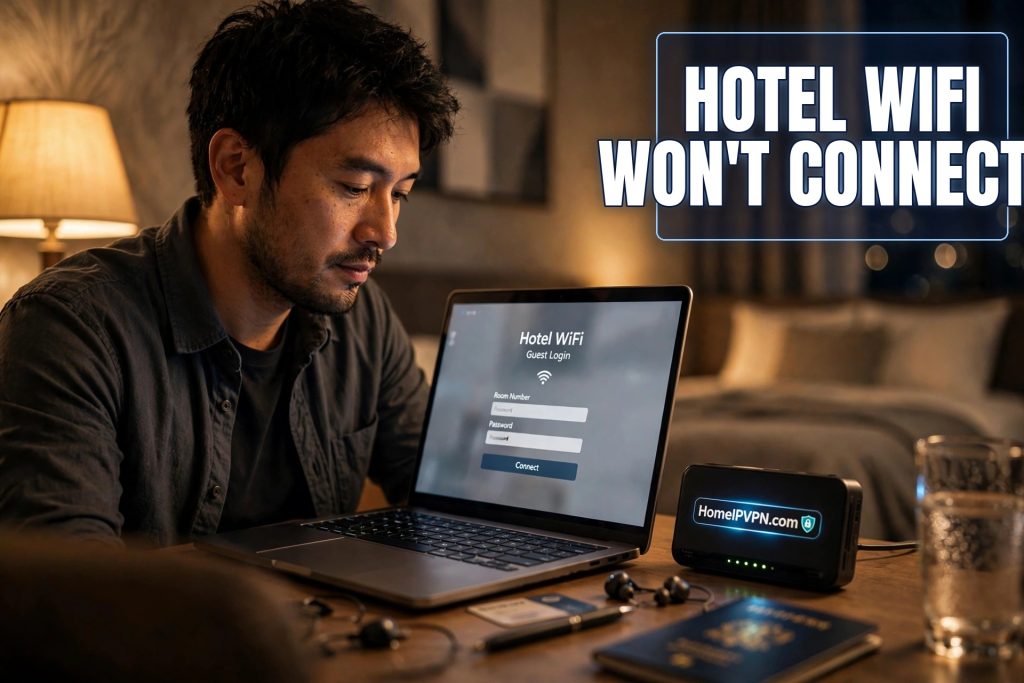
Travel Router Won't Connect to Hotel Captive Portal? Fixes
You've landed, the router's blinking, the hotel WiFi is right there, and… nothing. The login page won't appear, or it appears and then the VPN refuses to connect, or everything works until you enable the tunnel and the portal boots you off. Travel router captive portal not working is practically a rite of passage. Here's the order of operations that actually gets you online.
> Quick answer: To get a travel router past a hotel captive portal: connect the router to the hotel WiFi first, then open the portal page from a device behind the router and complete the login before enabling your VPN. If the portal won't load, try cloning your laptop's MAC address to the router, or connect your laptop directly to authenticate and then clone its MAC. If the portal still fights you after 15 minutes, tether from your phone and move on.
The Portal Dance: Connect, Authenticate, Then Enable VPN
Order matters enormously. The sequence that works:
- Router joins the hotel WiFi in repeater/WISP mode. Don't enable the VPN yet.
- Connect a laptop or phone to the router's WiFi (not the hotel's directly).
- Open a browser and try any plain HTTP site (never HTTPS for this; something like example.com). The portal's intercept should redirect you to the login page. If it doesn't redirect, try the hotel's documented portal address, often printed on the room key card or available from the front desk.
- Complete the portal: accept terms, enter the room number, whatever it asks.
- Confirm open internet through the router (load a couple of sites).
- Now enable your VPN tunnel to home. Verify your IP shows home.
Why this order: the portal needs to see your unauthenticated traffic to intercept it. If the VPN is already up, your traffic is encrypted to your home server, the portal sees nothing to intercept, and you sit there staring at a loading spinner. VPN after portal, always.
When the portal page won't load at all:
- Try a different browser or an incognito window (stale DNS cache and HTTPS redirects are the usual culprits).
- Try the router's own portal-assist feature: many GL.iNet routers detect captive portals and pop the login page automatically in the admin panel.
- Flush DNS on the laptop, or manually visit the gateway IP.
- Some portals only intercept on specific bands; if the router joined 5 GHz, try 2.4 GHz.
The "portal worked, then VPN killed it" variant: some hotels re-check authentication periodically and drop clients whose traffic pattern changes. If enabling the VPN boots you back to the portal, you may need to re-authenticate through the tunnel state… which doesn't work. This is the scenario where MAC cloning (below) or tethering usually wins.
MAC Cloning and Repeater-Mode Tricks
Hotels often bind the portal authentication to a device's MAC address, allowing one device per room (or charging per device). Your router has a different MAC than your laptop, so the hotel sees an unauthenticated stranger.
MAC cloning makes the router impersonate an already-authenticated device:
- Connect your laptop directly to the hotel WiFi (bypass the router) and complete the captive portal on the laptop.
- In the router's admin panel, find the MAC clone/spoof setting for the repeater interface.
- Set the router's WAN MAC to your laptop's MAC address (the router can often auto-detect it if the laptop is connected to the router at the time; otherwise copy it from the laptop's network settings).
- Reconnect the router to the hotel WiFi. The hotel sees the "same" authenticated device and lets it through.
- Now your laptop and everything else connect through the router, all sharing the one authenticated slot.
Repeater-mode tricks for stubborn portals:
- WISP vs repeater: try both modes if your router offers them; some portals behave differently toward each.
- TTL tweaks: a few aggressive hotels detect routers by TTL values. This is getting into the weeds; MAC cloning solves 90% of cases without it.
- Authenticate from the router itself: some firmware lets you open the portal page directly from the admin panel, which sidesteps device-hopping entirely.
Know the hotel's policy: some hotels explicitly allow routers, some charge per device (making the router a money-saver), and a rare few prohibit them in the terms. The front desk will usually just tell you if you ask.
When to Just Tether from Your Phone
There's a point where the portal isn't worth it. Switch to phone tethering when:
- You've spent 15+ minutes on portal gymnastics with no progress. Your time is worth more than the hotel's WiFi.
- The portal requires an app, SMS verification to a local number you don't have, or a room charge you don't want.
- The hotel WiFi is unusably slow even when it works. A 4G tether at 20 Mbps beats hotel WiFi at 2 Mbps every time.
- You need to be on a call in ten minutes. Don't debug networks before meetings.
Tethering through the travel router (USB tether the phone to the router, or join the router to the phone's hotspot) keeps your whole setup intact: private WiFi, home IP tunnel, kill switch, all devices covered. The phone is just the uplink. Speeds will be lower than good WiFi, but reliability is usually higher, and there's no portal at all.
Cost check: if you're roaming internationally, tethering can get expensive fast. That's what local SIMs/eSIMs are for: a prepaid data SIM in an unlocked phone, tethered to the router, is the standard nomad uplink and often cheaper than the hotel's "premium" WiFi tier.
The Pre-Trip Portal Kit
A few things that make portals painless:
- Know your laptop's MAC address before you travel (you'll need it for cloning).
- Keep the router firmware updated; portal-detection improves with every release.
- Save the hotel's portal URL pattern if you stay at chains; they're often identical across properties.
- Have the tethering fallback tested at home once, so it's muscle memory, not an experiment, at midnight in a foreign hotel.
FAQ
Why won't the hotel captive portal load on my travel router?
What is MAC cloning and why does it help with captive portals?
Should I enable the VPN before or after the captive portal login?
Can hotels detect and block travel routers?
Is it better to use hotel WiFi or phone tethering?
Do I need to re-authenticate the portal every day?
Need help setting this up?
Portal battles are easier with the right config from the start. We'll get your router's portal and failover settings sorted on a $79 consultation: https://homeipvpn.com/appointment. The $79 is credited toward the $379 Secure Home IP VPN System session, and the session happens remotely over screen share at your scheduled time.

