FREE CHROME EXTENSION
Home IP Checker: Am I Home? How to Tell If Your Home IP VPN Tunnel Is Really Working
Your VPN icon can say connected while your bank still sees a datacenter IP. This free one click check shows what the internet actually sees, before you log in.
✓One click check✓No account needed✓Checks IP, WebRTC, DNS, timezone and language
Quick Answer
HomeIPVPN built Home IP Checker: Am I Home? as a free Chrome extension that answers one question in one click: does this connection look like home, or does it look flagged? It shows your IPv4 and IPv6 addresses, your city and provider, whether the connection is residential, datacenter, VPN, Tor or mobile, whether WebRTC is leaking a different address, where your DNS is resolving, and a 0 to 100 score for how well your IP country, timezone and language match. If the result says Residential and the city, provider and timezone all match home, your tunnel is doing its job. If it says Datacenter or VPN, or it flags a leak or a mismatch, fix that before you open your bank, work system or streaming account.
- Best time to check: right after you connect your tunnel, and before any sensitive login.
- Good result: Residential, your home city and home provider, no WebRTC leak, timezone matches.
- Bad result: Datacenter, VPN or proxy, a WebRTC leak, DNS in another country, or a timezone that does not match.
- Not a VPN: It does not give you a home IP, and it does not change your connection.
Home IP Checker: Am I Home?
Free Version 1.2.2 No account needed
- ✓ IPv4 and IPv6, connection type and a 0 to 100 score in one click
- ✓ WebRTC leak check, DNS country, timezone and language match
- ✓ History on your device only, with a copyable report
If you work from abroad, you have probably felt this moment. You connect your VPN, the little icon turns green, and you open your bank. Then the bank asks for extra verification, or blocks the login completely. Or your work portal says your location looks unusual. Or a streaming service says the show is not available in your region.
The VPN was probably connected. The problem was what it looked like from the other side. A normal VPN gives you a shared address from a datacenter, and banks, employers and streaming services have learned to flag those. A home IP VPN is different, because it routes you through your own home internet, so every site should see your real home address. The word should is doing a lot of work there. A tunnel can drop, a second VPN can take over, a browser setting can leak your real address, or your laptop timezone can give you away. You cannot see any of that from the VPN icon.
That is why we built a checker first, and a sales pitch second. Home IP Checker: Am I Home? runs one check, in your browser, in seconds, and tells you in plain words what the internet sees. Use it before you trust the connection, not after a site has already flagged you.
Your VPN icon can say connected while your IP says something else
A VPN icon only tells you that a tunnel started. It does not tell you where the tunnel ends, what kind of address you came out on, or whether anything else on your computer is leaking around it. Three everyday cases prove the point.
First, the tunnel never connected properly. Your travel router tried to reach your home router, the hotel Wi-Fi interrupted it, and your laptop quietly fell back to the hotel network. Everything still loads, so nothing looks broken, until a site sees a hotel IP.
Second, the tunnel is up, but your browser is leaking. WebRTC, the technology behind voice and video calls in the browser, can reveal a local or public address that does not match your tunnel address. DNS, the system that turns a website name into an address, can also resolve through a different country. Either one can tell a careful site that you are not really where your IP says you are.
Third, the small signals do not match. Your IP says home, but your laptop timezone says the city you are actually sitting in, and your browser language says another region again. One mismatch on its own is rarely a block. Several together look like a person trying to hide their location, and that is exactly what fraud systems are built to notice.
A single IP lookup cannot catch all three. You need the IP, the connection type, the leak checks and the consistency checks together, in one place, at the moment you are about to log in. That is what this extension does.
What the checker looks at in one click
Install it from the Chrome Web Store, click the icon, and click Check my connection. You get one result card, with a verdict in plain words and a score from 0 to 100. Here is what goes into it.
Your IP addresses, IPv4 and IPv6 separately
Most checkers show one address and stop there. This one shows IPv4 and IPv6 separately, and tells you whether you are on Dual stack, IPv4 only or IPv6 only. That matters, because a leak often hides on the second stack. If your IPv4 goes through your home tunnel but your IPv6 goes straight out over hotel Wi-Fi, a site that reads IPv6 will see the hotel. The checker compares each stack on its own, so an address on the other stack is not wrongly flagged as a leak.
Your connection type
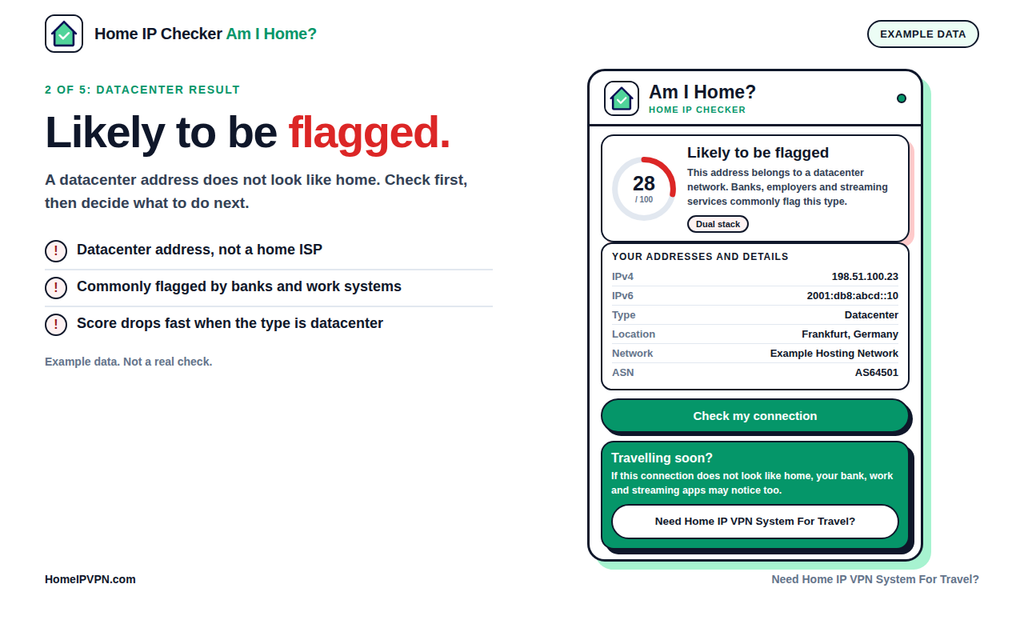
Next to each address you see the city, country, network provider and ASN, and a connection type: Residential, Datacenter, VPN or proxy, Tor, Proxy network or Mobile network. Residential means the address looks like a normal home connection, with low flag risk. Datacenter or VPN means banks, employers and streaming services commonly flag this type of address. That one label is often the whole story behind a blocked login.
For a home IP VPN user, this is the first thing to check. When your tunnel to home is working, the type should say Residential, and the city and provider should be your home city and your home provider. If it says Datacenter or VPN while your tunnel is supposed to be on, the tunnel is not carrying your traffic the way you think it is.
WebRTC leaks, checked the right way
The WebRTC check looks at the addresses your browser exposes during voice and video calls, and judges each one against the matching stack. An IPv4 WebRTC address is compared with your IPv4 address, and an IPv6 WebRTC address with your IPv6 address. A real leak is an address that matches neither your IPv4 nor your IPv6 address.
The detail matters. An early version of this check flagged too much, because it compared every WebRTC address against one address. That was fixed, and the current version also handles the case where both stacks share one provider network, including the same IPv6 /64 network at home. A different provider on a residential connection is shown as information, not as a failure. A leak on a VPN, proxy, Tor or datacenter connection costs 25 points, because that is where a leak actually hurts you.
One honest note: the extension flags a leak, it does not fix it. An earlier version had a switch to change the browser WebRTC setting. That switch was removed in version 1.2.2, because a checker should report what it sees and leave your browser settings alone. If it flags a leak, fix the tunnel or the browser setting yourself, then run the check again and confirm the leak is gone.
DNS, timezone and language
The checker also shows your DNS resolver country, and then it compares three things that should agree with each other: your IP country, your browser timezone, and your browser language region. This is the consistency check, and it is stricter than it sounds.
Sharing a country is not enough to pass. A browser set to America/Indianapolis, in Indianapolis, Indiana, Eastern time, against a connection reporting America/Chicago, in Chicago, Illinois, Central time, is flagged as a mismatch, even though both are in the United States. Different state, different city, different timezone is a real mismatch, and the checker says so. It also knows the full timezone map, including the short names Windows and Chrome actually report, such as America/Indianapolis, so a correct timezone is not skipped or wrongly flagged just because of its name.
If either value is missing, the checker says it could not compare, instead of guessing. A skipped check is not a pass, and it is not a fail. It is a note to check again when both values are available.
Your score from 0 to 100
All of that rolls up into one score from 0 to 100, for IP country, timezone and language region consistency. A high score with a Residential label means your connection looks like an ordinary person at home. A low score means something does not line up, and the result card tells you which check pulled the score down, so you are not left guessing.
Do not treat the score as a grade for your VPN. Treat it as a warning light. A score of 100 does not prove no site will ever flag you, and a lower score does not prove your tunnel is broken. It tells you where to look, and whether it is safe to log in right now or better to fix one thing first.
How to read your result
Read the verdict first, then the labels, then the score. The verdict is the summary. The labels are the evidence.
If the result says your connection looks like home, with Residential, your home city, your home provider, no WebRTC leak and a matching timezone, you are good to log in. That is the result a working home IP VPN should give you, every time, from any hotel or cafe.
If the result says Datacenter or VPN, stop and check the tunnel before you log in. Your traffic is probably going through a commercial VPN, a proxy, or a hosting network, not through your home. Check that your travel router is connected to your home router, that no other VPN app is running on the laptop, and that the tunnel did not drop back to hotel Wi-Fi.
If the result says Mobile network, you are on phone data or a hotspot, not on your tunnel. That is fine for browsing, but do not use it for a bank or work login that expects your home IP. Reconnect through your travel router first.
If the result flags a WebRTC leak, look at which address leaked and which stack it belongs to. If it is your hotel or local address showing through the tunnel, your browser is exposing an address your tunnel does not cover. Fix the browser or tunnel setting, then re-run the check and confirm the leak is gone before you log in.
If the result flags a timezone or language mismatch, check your laptop settings. This is the most common surprise for travellers, because a laptop keeps the timezone of the place you are sitting in, while your IP says home. Set the timezone to your home timezone while you work through the tunnel, and keep the browser language region consistent with home too.
How to use it before you log in
Make the check a habit, not a rescue step. It takes seconds, and it is most useful in the minute before a login, when a flag would cost you the most.
- Install the extension from the Chrome Web Store, then pin it in Chrome so the icon is always one click away.
- Connect your home IP VPN tunnel first, through your travel router, and wait until the tunnel shows as connected.
- Click the extension icon, then click Check my connection, and read the verdict before you open your bank, work system or streaming account.
- Run it again after you change location, change Wi-Fi, reconnect the tunnel, or after any site blocks you or asks for extra verification.
- Keep past results in History. Your recent checks stay on your device only, and you can open an older check to compare it with today, or clear the history any time.
The copy report button is there for a reason. If a login keeps failing and you need help, copy the report and send it with your message. It shows the addresses, the connection type, the leak result and the score, so the person helping you does not have to guess what you saw. Do not post that report publicly, because it contains your public IP and your city.
What to do if it flags you
A flagged result is useful, not a disaster. Work through it in this order, and re-run the check after each step, so you know which step fixed it.
- Check the tunnel is really up on your travel router, not just on your laptop. Reconnect it, wait for the connected state, then check again.
- Turn off any other VPN app, proxy extension or work VPN on the laptop, then check again. Two tunnels at once almost always produce a flagged result.
- Check your browser timezone and language region, and set them to home while you work through the tunnel.
- Check IPv6. If your home tunnel only covers IPv4, your IPv6 traffic may still go out locally. Test with the tunnel on and off, and compare the two results.
- Check DNS. If the resolver country does not match home, your DNS requests are going around the tunnel, not through it.
- If the same flag keeps coming back after all of that, copy the report and book help, instead of logging in again and again and training the bank to distrust the address.
If you want a person to look at it with you, book a $79 Pre-Travel Audit & Advisory session. It is one hour, remote, and the fee is credited toward the $279 Secure Home IP VPN System session if you go ahead with a full setup. Bring the copied report to the session, so the time goes on fixing the tunnel, not on describing it.
What the extension does not do
It is worth saying this plainly, because a checker that pretends to be a VPN would be worse than no checker at all.
Home IP Checker is not a VPN. It does not give you a home IP, it does not route your traffic, and it does not change your connection. If your result says Datacenter, installing the extension will not turn that address into a residential one. You still need a home IP system for that, with a router at home running a WireGuard server and a travel router connecting back to it.
It does not change any browser setting, and it does not fix a leak for you. Version 1.2.2 removed the WebRTC switch on purpose. The extension reports what it sees, and you decide what to change. It also needs no account and no email, and your recent checks stay on your device only. The check has to see your public IP to look it up, as any IP checker must, but nothing is collected or sold.
If you only need a one off lookup, without installing anything, the What is My VPN IP? page on this site does the same kind of lookup in the browser. The extension is for people who want that check in one click, every day, before every login, with history to compare.
Why this matters for a home IP VPN
A home IP VPN only works if every signal agrees. The IP says home, the provider is your home provider, the connection type is Residential, the timezone matches home, and nothing leaks around the tunnel. One signal out of place is usually enough for a careful site to ask questions.
That is the real job of this extension. It does not make your tunnel work. It proves whether it is working, in the moment, on the connection you are actually using, before a bank or an employer has to tell you it is not. Run it when you arrive, run it when you reconnect, and run it before the login that matters. A green icon is a hope. A Residential result, with your home city and a matching timezone, is evidence.
Frequently asked questions
Is Home IP Checker a VPN?
No. It is a checker, not a VPN. It shows what your current connection looks like, and whether it looks like home or like a flagged datacenter or VPN connection. It does not give you a home IP or change your connection. If you need a home IP system for travel, use the button inside the extension to visit HomeIPVPN.com.
Does it store my IP or my checks?
No account and no email are needed. Your recent checks stay on your device only, and you can clear them at any time. The check has to see your public IP to look it up, as any IP checker must, and the developer states that your data is not sold, not used for unrelated purposes, and not used to determine creditworthiness.
Why does my score drop if my timezone does not match?
Because the score checks whether your IP country, timezone and language region agree with each other. If your IP says home but your laptop timezone says the city you are sitting in, that is a real mismatch, and fraud systems notice it. Sharing a country is not enough to pass. A different city and state timezone, such as Indianapolis against Chicago, is flagged, even though both are in the United States.
What is a WebRTC leak, in plain words?
WebRTC is the technology behind voice and video calls in your browser. During a call, your browser can expose an IP address. If that address is different from the address your VPN tunnel shows, and it matches neither your IPv4 nor your IPv6 tunnel address, it is a real leak, and a site can use it to see around your tunnel. The checker compares each WebRTC address against the matching stack, so an address on the other stack is not wrongly called a leak.
My IP says the wrong city. Is my tunnel broken?
Not always. IP location is an estimate from the address registry, not GPS, and it is usually right about the city but sometimes only gets the region. Mobile and VPN addresses are the least accurate. Check the connection type and the provider first. If the type says Residential and the provider is your home provider, a nearby city is usually harmless. If the type says Datacenter or VPN, or the provider is unfamiliar, the tunnel is the more likely problem.
I got a low score. What should I do first?
Read which check pulled the score down, and fix that one thing first. If it is the connection type, reconnect your tunnel and turn off any other VPN. If it is WebRTC, fix the browser or tunnel setting and re-run the check. If it is timezone or language, set both to home. Re-run the check after each fix, so you know what worked. Do not keep logging in while the result is flagged.
Conclusion
Working from abroad is stressful enough without guessing whether your connection looks like home. Install Home IP Checker: Am I Home? from the Chrome Web Store, run it right after you connect your tunnel, and read the verdict before you log in. If it says Residential, with your home city, your home provider and a matching timezone, log in with confidence. If it flags something, fix that one thing, re-run the check, and only then open the account that matters.
And if the same flag keeps coming back, do not fight the bank on your own. Book a $79 Pre-Travel Audit & Advisory session, bring the copied report, and get the tunnel checked properly before your next trip.